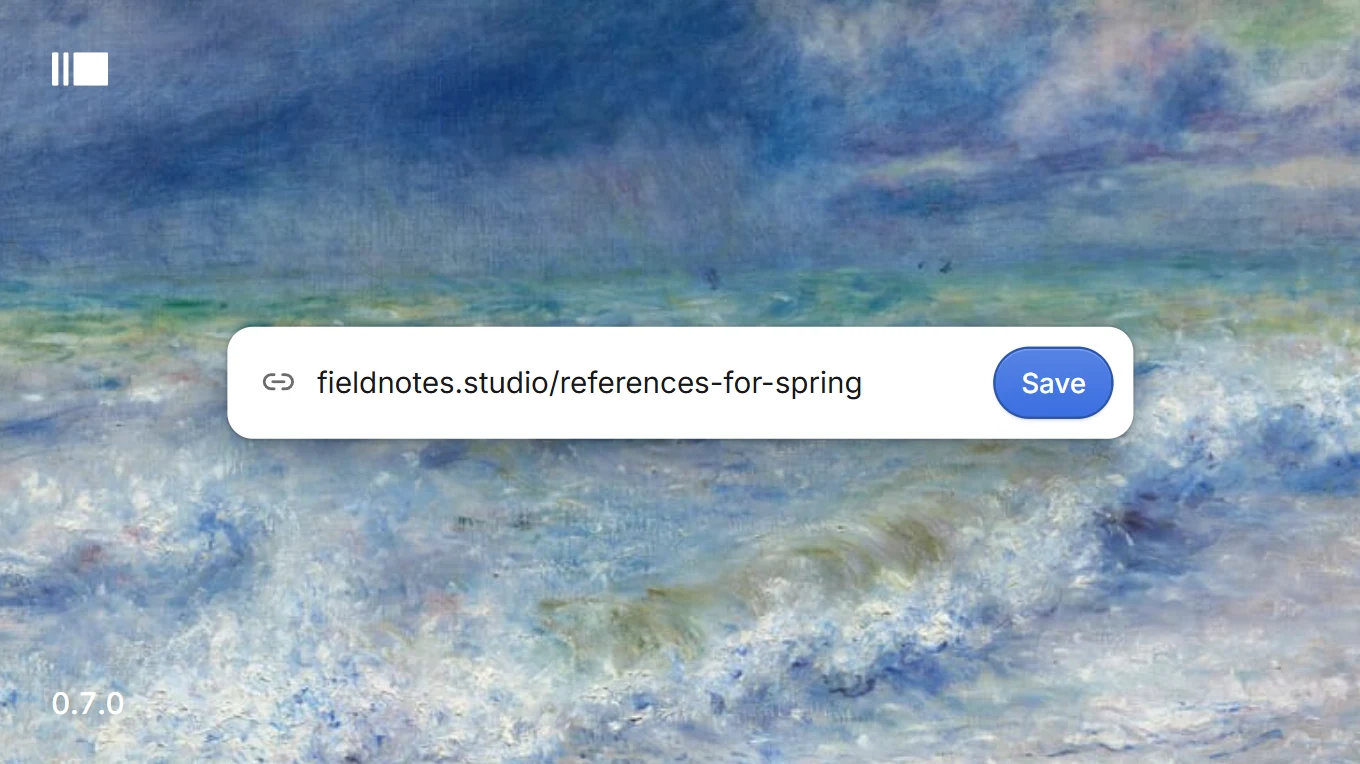
Paste a link and Galleri keeps the page with its title and picture, then opens it right there in a window of its own. Opening the app and going into a picture are smooth now too.
Links
Save a link by pasting it into the library or from the + menu. Galleri keeps it with the page’s title and picture.
A saved link opens in a full-width browser window beside its details, always at the page’s own size.
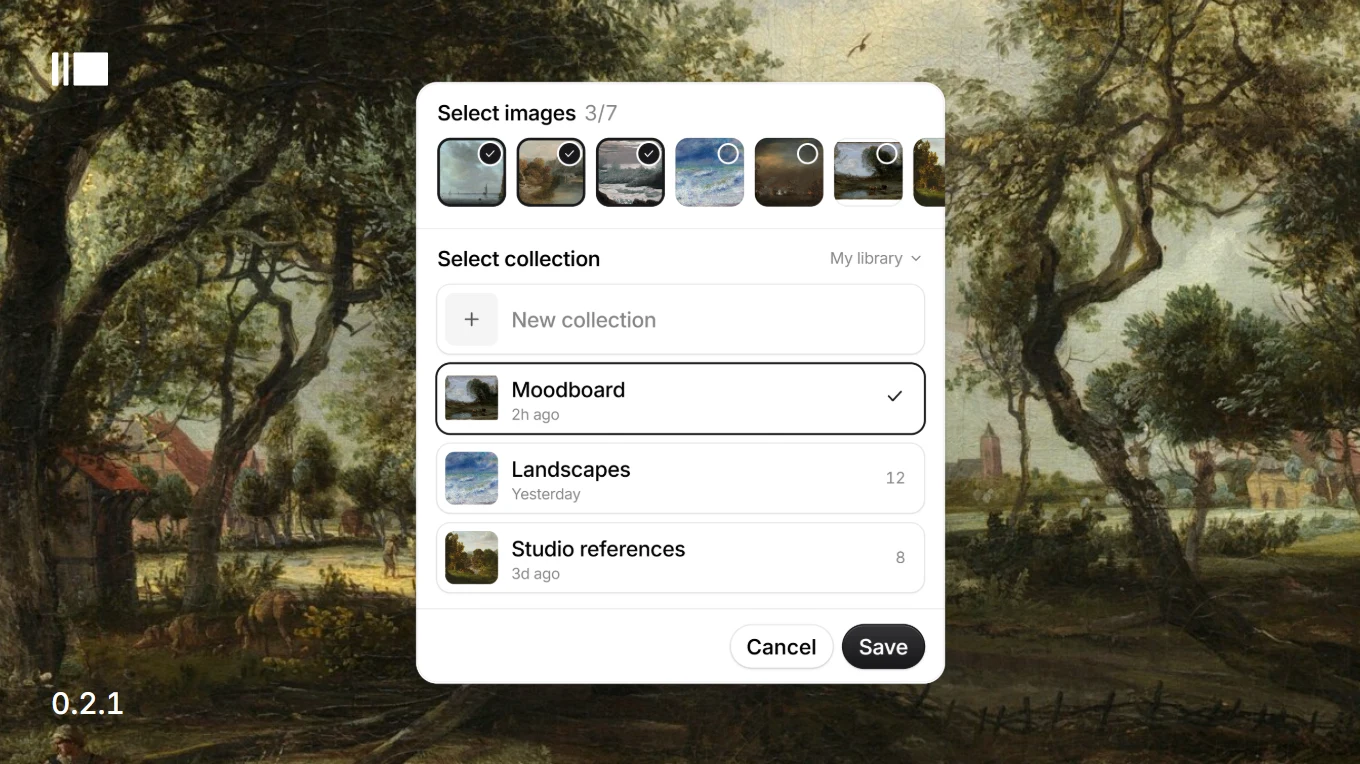
Save on Galleri opens from X’s share menu, and as a button on Pinterest pins, with the post’s pictures already ticked.
After the extension updates, its button keeps working in tabs that were already open. Before, a click there did nothing.
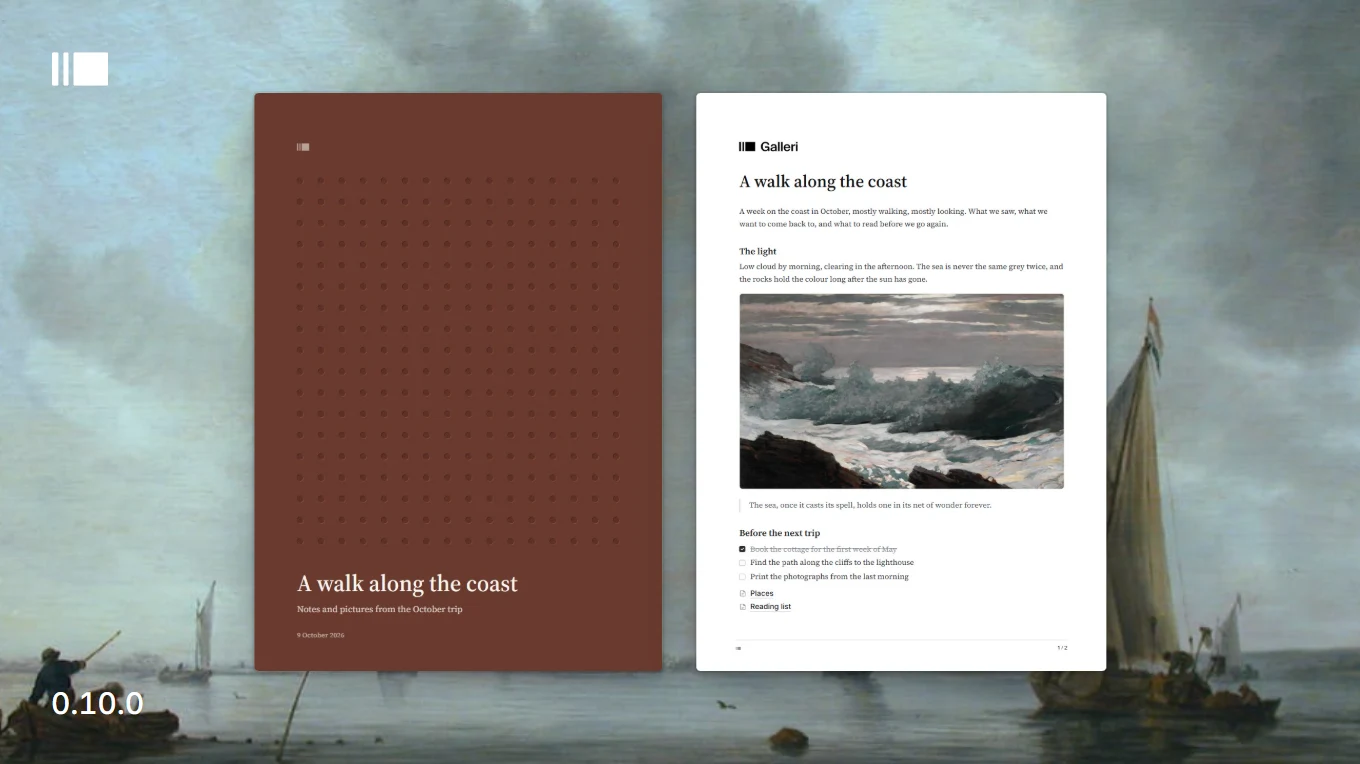
On Windows, Galleri opens without stuttering: the library appears about 250 ms sooner and the first scroll is smooth, measured on a library of 11,000 items.
Going into and out of a picture no longer stutters, even on very large photos.
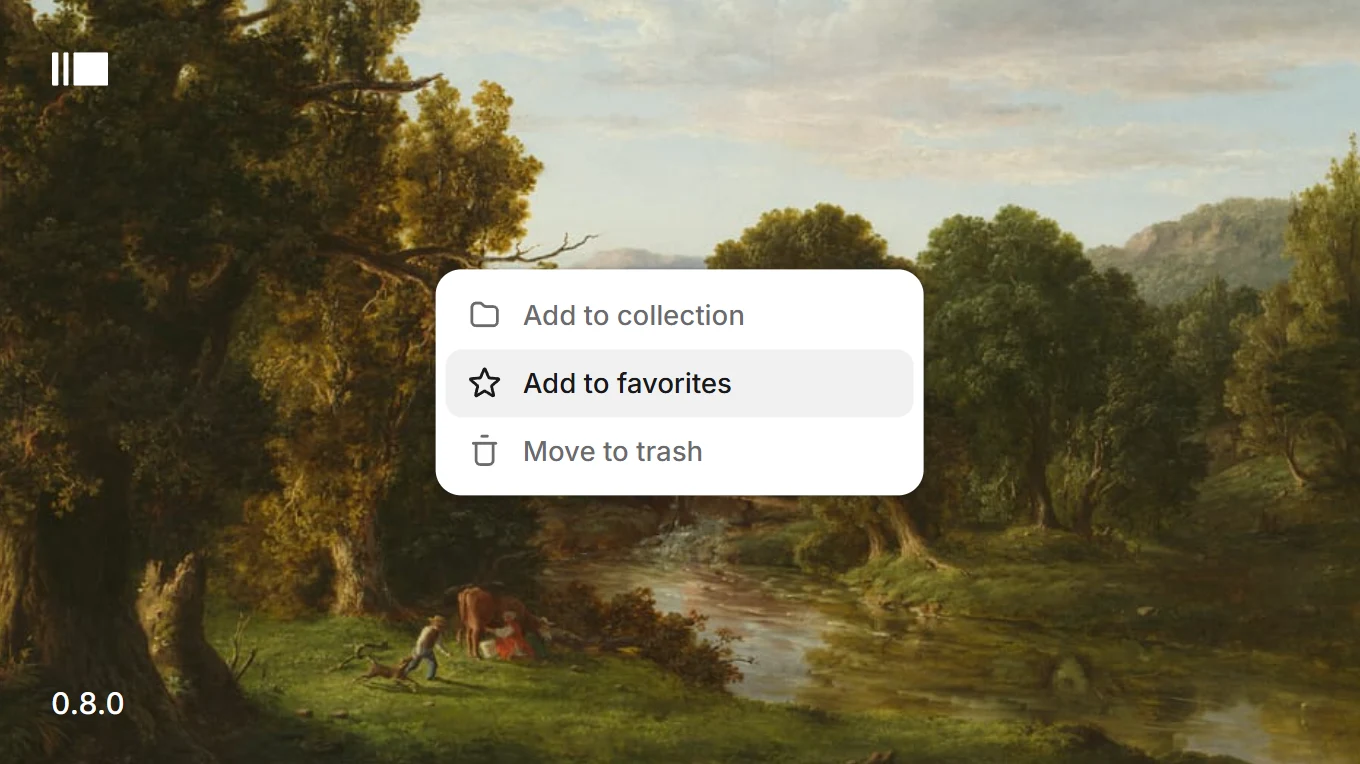
Right-click the picture in the viewer to reveal it in its folder or move it to the trash, or restore it from the trash.
When an update is found, Galleri says so at once and shows the download’s progress.
On Linux, an installed .deb checks for updates too.
Opening a picture and folding the sidebar are smoother on large libraries, and a backup now checks there is room before it writes anything.
Backups
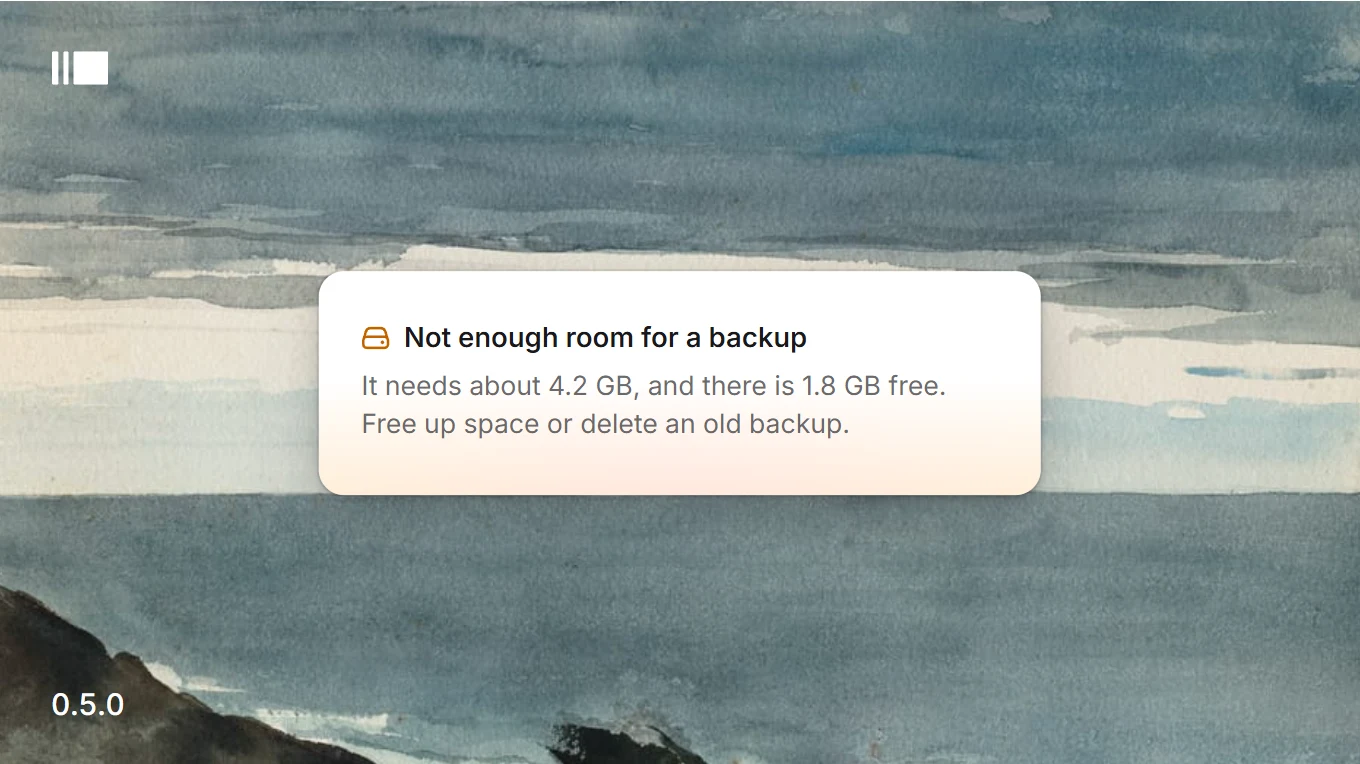
Before a backup starts, Galleri checks the free space where backups go. If it will not fit, it says how much it needs and how much is free, and writes nothing.
The last three backups are only let go after a new one finishes, so the new one has to fit beside them.
If the disk fills up partway anyway, it is reported the same way and nothing half-written is left behind.
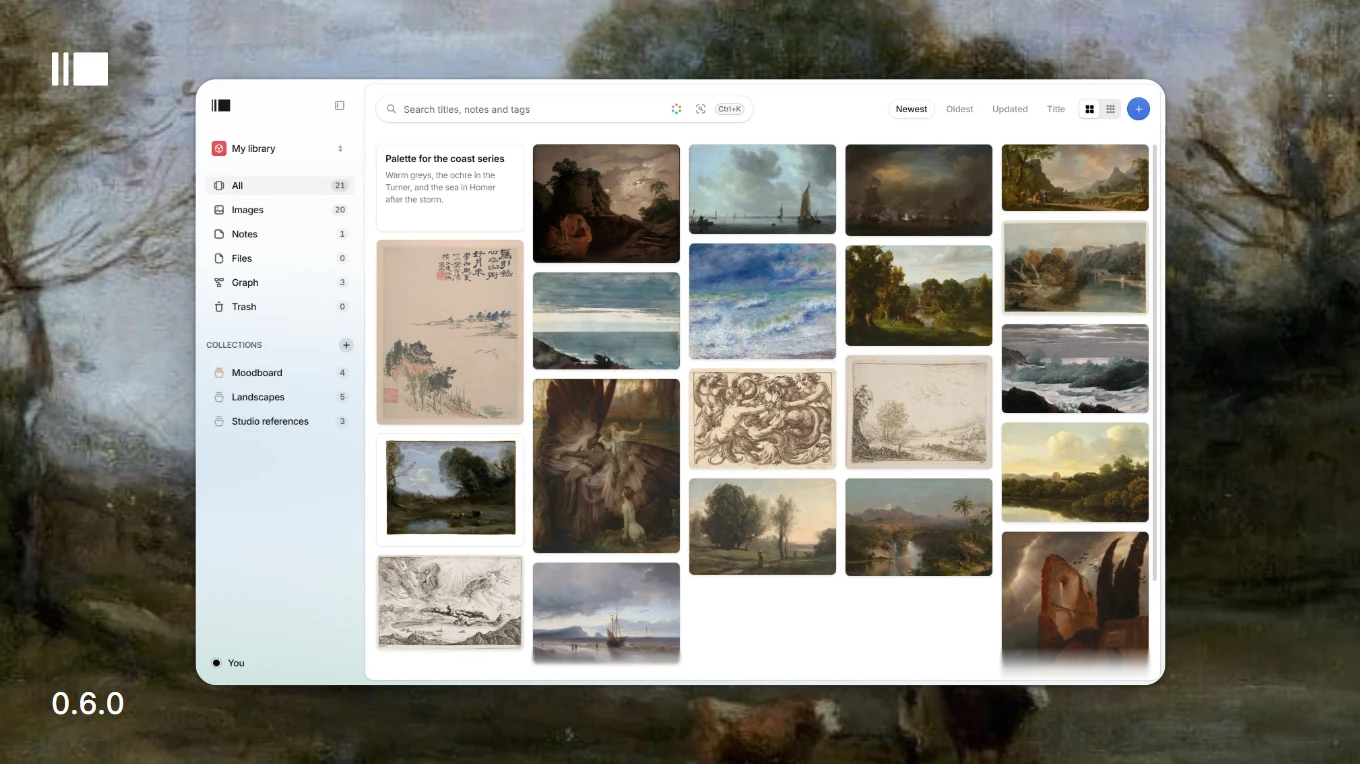
Opening a large picture settles in about 310 ms, down from 420 ms, measured on a library of 10,700 items.
Folding the sidebar moves its rows instead of resizing each one: slow frames went from 46 to 8.
The grid’s edges blur progressively, strongest against the header.
On Linux, the launcher and the dock show Galleri’s icon. Before, they showed none.
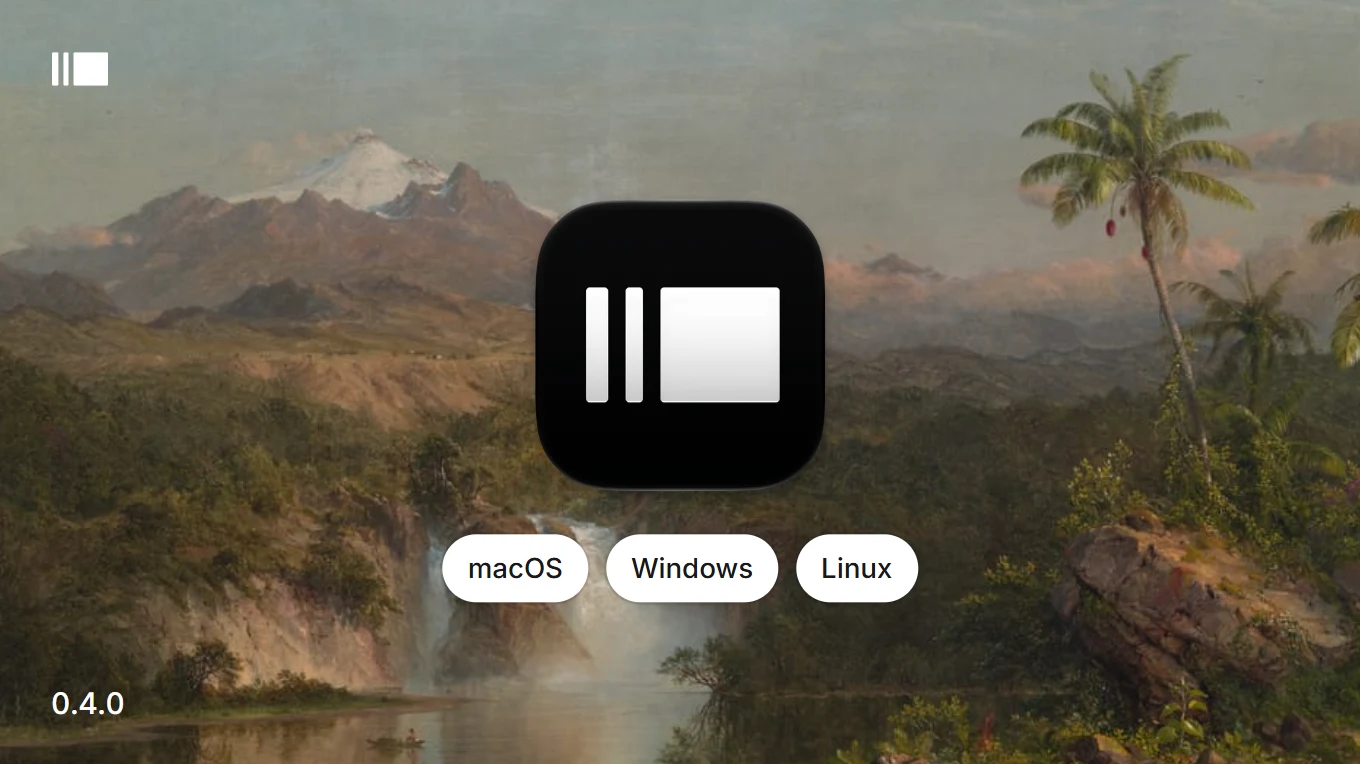
Every release now comes for Apple Silicon Macs and for Linux beside Windows, with a new icon made for each platform.
Mac and Linux
A disk image for Macs with Apple Silicon. Intel Macs are not supported.
The Mac app is not signed by Apple yet, so macOS asks for confirmation the first time you open it.
On a Mac, Galleri finds the new versions your licence covers and downloads the disk image itself. Open installer opens it.
A .deb package for x64 Linux. It installs to /opt/Galleri, puts galleri on the path and adds an entry to the launcher. To update, install the next .deb.
A new icon, drawn for each platform. On the Mac it sits on the same grid as the rest of the Dock.
The Mac disk image opens on a window of its own: paper, paintings drifting at the edges, and an arrow from Galleri to Applications.
Check for updates in the library menu, on every platform.
Your licence card shows your own member number.
Libraries opens faster the first time, in about 80 ms instead of 250 ms.
Fixes to undo, emptying the trash and the model download sheet.
A note can hold pages of its own, search reads what you mean as soon as the on-device model is installed, and a .zip, .rar or .7z imports like a folder.
Pages in notes
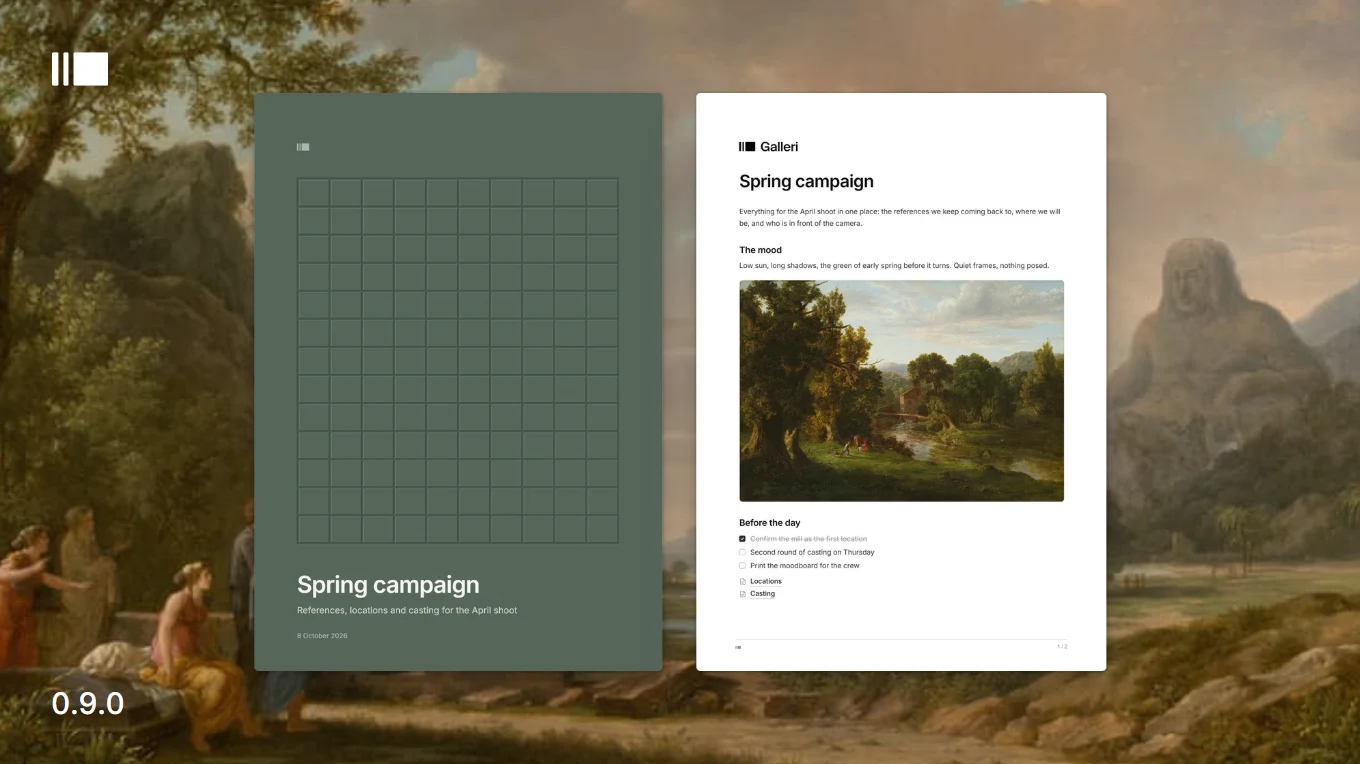
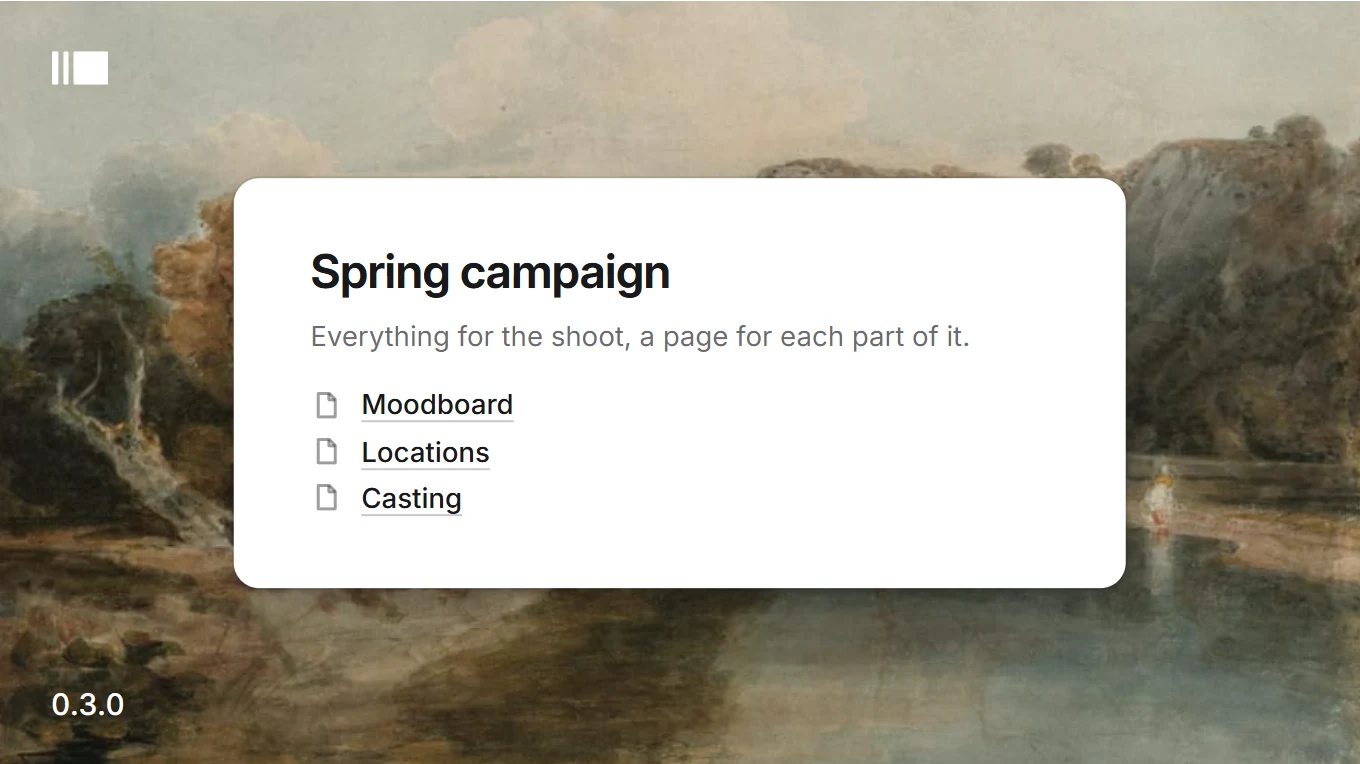
Type /Page, or use the + in the sidebar, to add a page inside a note. It shows in the note as a line that opens it.
Pages sit under their note in the sidebar, as a tree. They stay off the wall and out of the Notes count, but search finds them.
A picture pasted into a page is kept with the note, not added to the library. A note goes to the trash with its pages, and comes back with them.
With the on-device model installed, search is always by meaning, and the toggle beside the field is gone. Without the model it matches words, and a button in the field gets the model.
Tags and colour now narrow a search by meaning too, and the notes and files lists take them as well.
Search remembers your last twenty searches and twenty-four viewed items per library, on this computer only. An export never carries them.
Intelligence names the model behind search by meaning: CLIP, by OpenAI, running on your computer.
Import a .zip, .rar or .7z and it opens like a folder: folders inside become collections, loose files go into the library.
Each library is bound in a cloth from a shelf of twenty muted colours. A new library gets one at random.
The update notice is a small card in the lower right corner, out of the way of other messages.
The lock screen always says what it is waiting for: checking your licence, downloading, or a connection to the internet.
The Galleri mark is redrawn, a little wider with heavier bars, everywhere it appears.
SVG files come in with their picture. The ones kept blank before are mended.
A locked version whose download fails tries again a minute later.
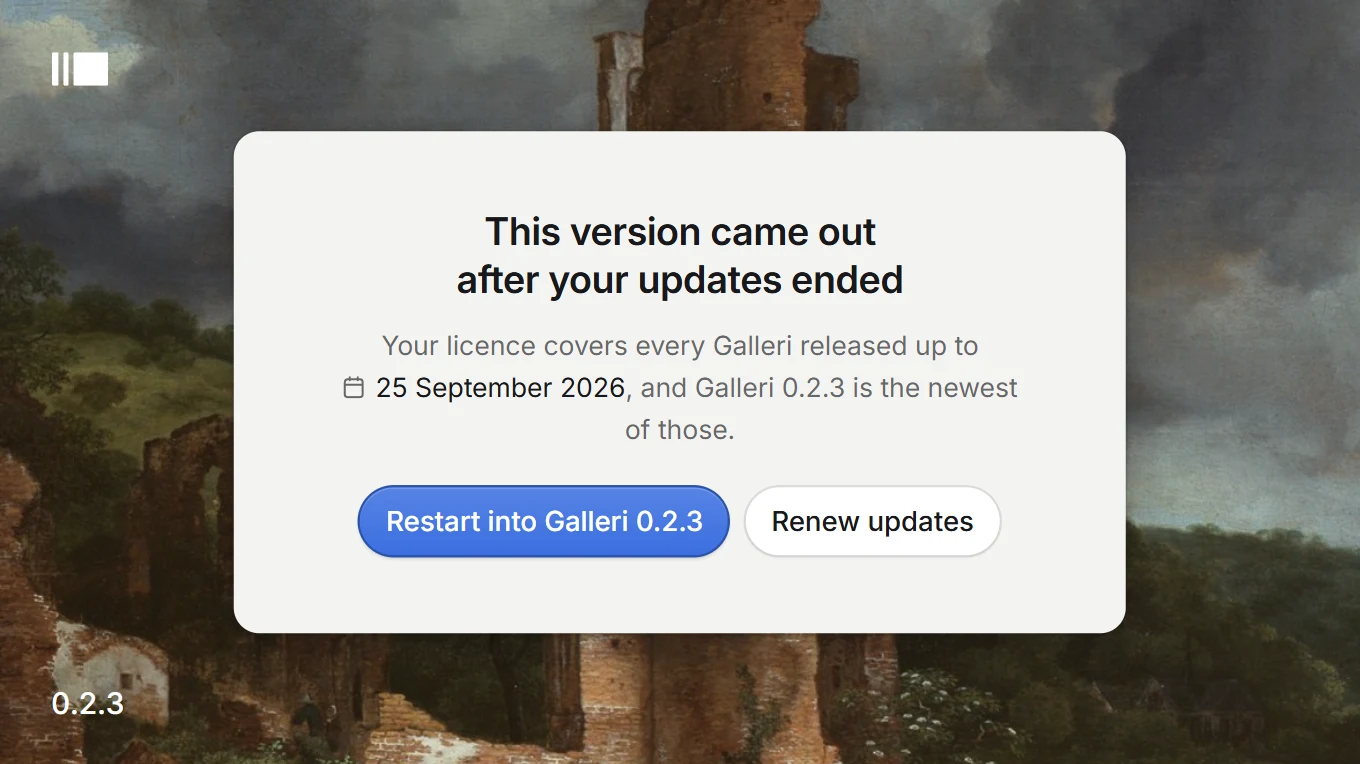
When a version came out after your licence’s updates ended, Galleri now says so plainly on one screen, and unlocks as soon as you are back online.
Improvements
The lock screen shows the date your updates ended and the newest version your licence covers.
Your library’s own images drift behind the message. Nothing in the library is touched.
Two clear actions: restart into the version you own once it has downloaded, or renew updates.
Offline, the end date now comes from your account, as last confirmed by the server, instead of a generic message.
A locked version checks for updates every minute until it gets an answer. Before, it waited up to 12 hours, so it stayed locked long after the connection came back.
The first public version of Galleri. Save images from any page straight into your library with the new Chrome extension, and get new versions automatically from now on.
Save on Galleri for Chrome
Right-click any image in Chrome and choose Save on Galleri. A card rises from the bottom of the page.
Tick more images from around the one you clicked, then pick the library and collection they go into.
Save into any library, not only the one open. If it is open, the grid updates on its own.
Open Galleri brings the window forward on the collection the images went into.
The extension talks only to Galleri on your computer. Web pages cannot reach it.
The first run shows how to add it to Chrome, with the extension’s folder one click away.
New versions download in the background. A notice in the lower right corner tells you when one is ready to install.
A licence gets every version released during its updates period and keeps them for good. A standard licence includes one year of updates, renewable a year at a time.
The update server only offers the versions your licence covers.
Backups show real progress and can be cancelled.
Reloading the window no longer flashes a dark, empty screen.